

Interact with a node RPC
If you're a new Web3 developer, it's unlikely that you'll need to run your own full node on Polygon.
If you're a new Web3 developer, it's unlikely that you'll need to run your own full node on Polygon.
The majority of developers use a node provider, or a third-party external service that receives node requests and returns responses for you automatically. That's because the fastest way to get developing on Polygon is using a node provider rather than managing your own node.
This guide demonstrates how to connect to a RPC provider, using Alchemy as an example.
Send your first blockchain request
This guide assumes you already have an Alchemy account and access to the Alchemy Dashboard.
Create an Alchemy key
First, you'll need an Alchemy API key to authenticate your requests. You can create API keys from the dashboard. Check out this YouTube video on how to create an app. Or you can follow the steps written below:
-
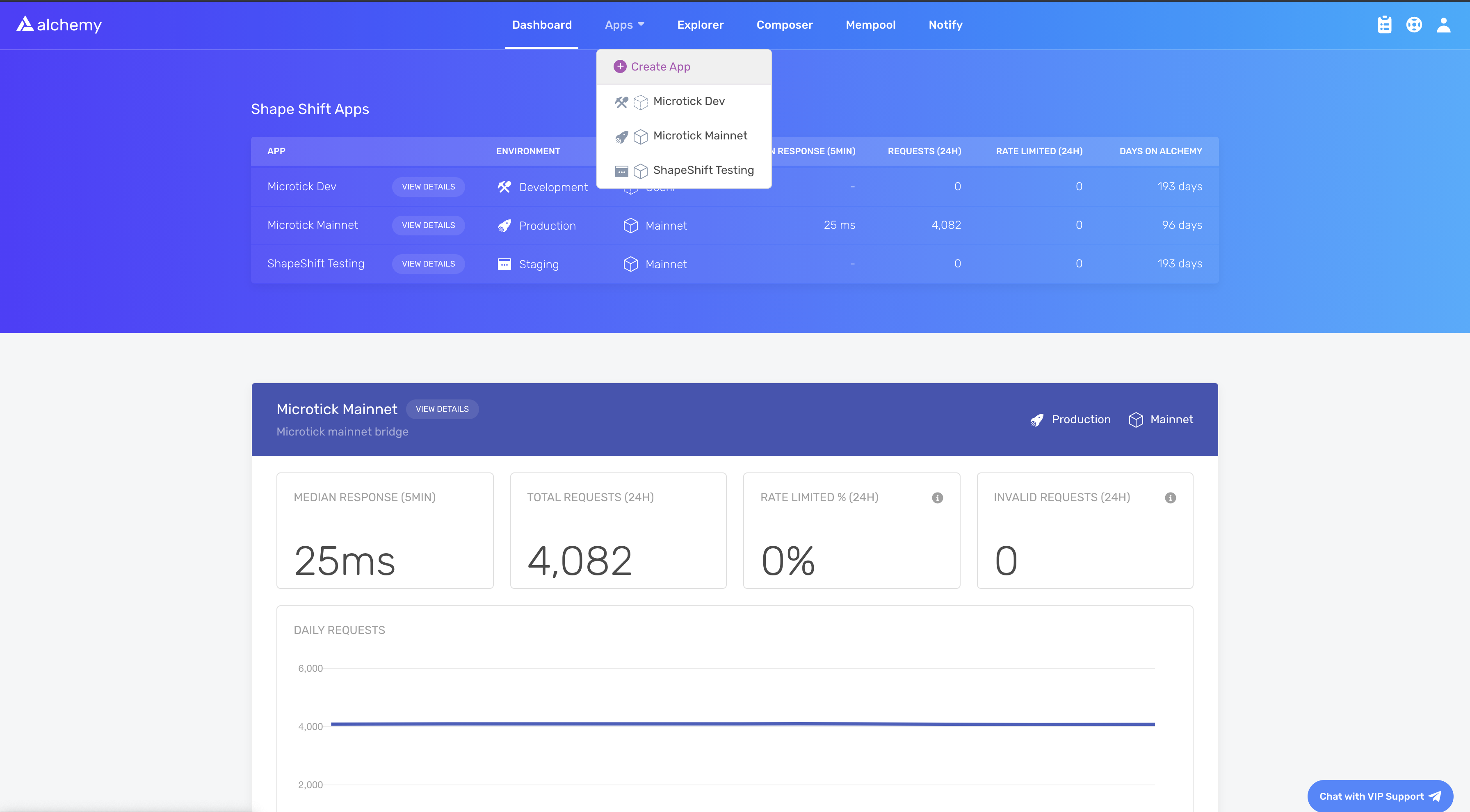
Navigate to the Create App button in the Apps tab.
-
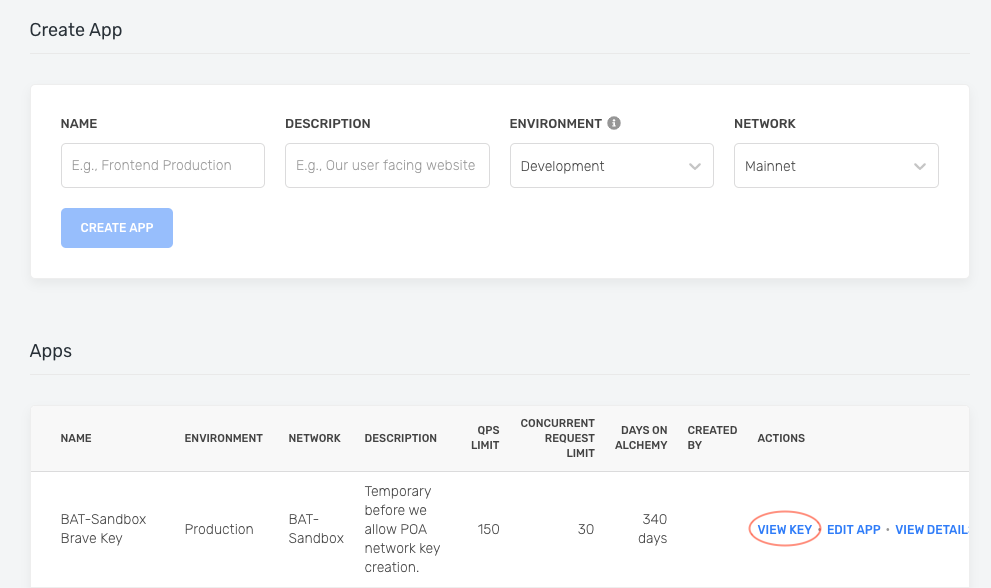
Fill in the details under Create App to get your new key. You can also see the applications you previously made by you and your team on this page. Pull existing keys by clicking on View Key for any app.
Optional
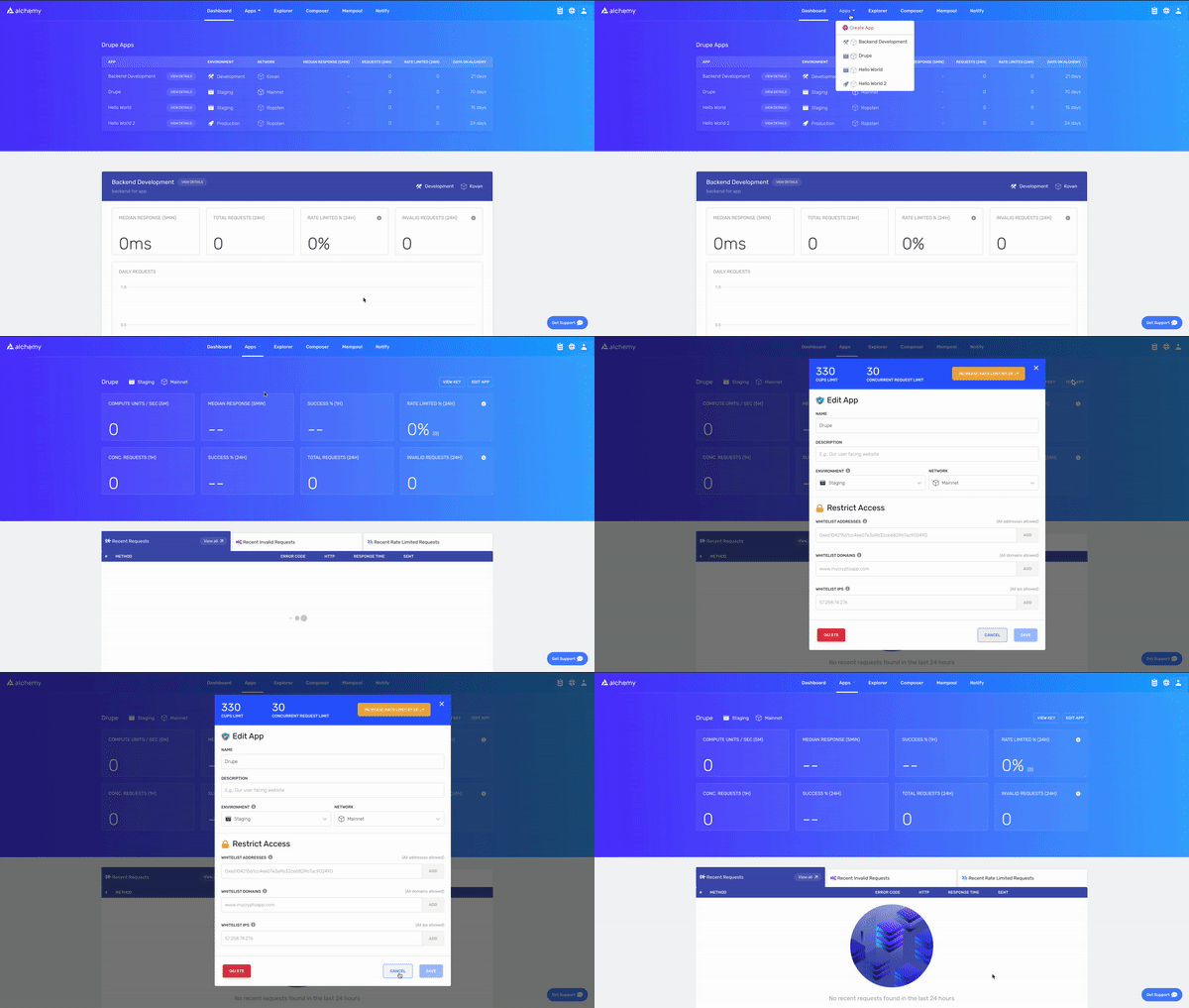
You can also pull existing API keys by hovering over Apps and selecting one. You can View Key here, as well as Edit App to whitelist specific domains, see several developer tools, and view analytics.
Making a cURL request
You can interact with Alchemy's Polygon infrastructure provider using JSON-RPC and your command line interface.
For manual requests, use POST requests to interact with the JSON-RPC. Simply pass in the Content-Type: application/json header and your query as the POST body with the following fields:
jsonrpc: The JSON-RPC version—currently, only2.0is supported.method: The MATIC API method. See API reference.params: A list of parameters to pass to the method.id: The ID of your request. Will be returned by the response so you can keep track of which request a response belongs to.
Example request
curl https://eth-mainnet.alchemyapi.io/jsonrpc/demo \
  -X POST \
  -H "Content-Type: application/json" \
  --data '{"jsonrpc":"2.0","id":73,"method":"eth_gasPrice","params":[]}'
In case you want to send requests to your own app instead of our public demo, replace https://eth-mainnet.alchemyapi.io/jsonrpc/demo with your own API key https://eth-mainnet.alchemyapi.io/v2/your-api-key.
Results:
{ "id": 73,
  "jsonrpc": "2.0",
  "result": "0x09184e72a000" // 10000000000000 }
Alchemy SDK setup
To make blockchain requests directly from your Javascript / Node.js dApp, you'll need to integrate the Alchemy SDK, the easiest and most powerful way to access the blockchain and Alchemy's suite of enhanced APIs.
If you have an existing client such as Web3.js or Ethers.js, you can just change your current node provider URL to an Alchemy URL with your API key: https://eth-mainnet.alchemyapi.io/v2/your-api-key
The scripts below need to be run in a node context or saved in a file, not run from the command line.
Install the Alchemy SDK
To install the Alchemy SDK, you want to create a project, and then navigate to your project directory to run the installation. Let's go ahead and do that! Once we're in our home directory, let's execute the following:
With Yarn:
mkdir your-project-name
cd your-project-name
yarn init # (or yarn init --yes)
yarn add alchemy-sdk
With NPM:
mkdir your-project-name
cd your-project-name
npm init   # (or npm init --yes)
npm install alchemy-sdk
Create index.js
import { Alchemy, Network } from "alchemy-sdk";

const settings = {
  apiKey: "demo", // Replace with your Alchemy API key.
  network: Network.ETH_MAINNET, // Replace with your network.
};

const alchemy = new Alchemy(settings);

async function main() {
  const gasPrice = await alchemy.core.getGasPrice();
  console.log(gasPrice.toString());
}

main();
Run
node index.jsLast updated on